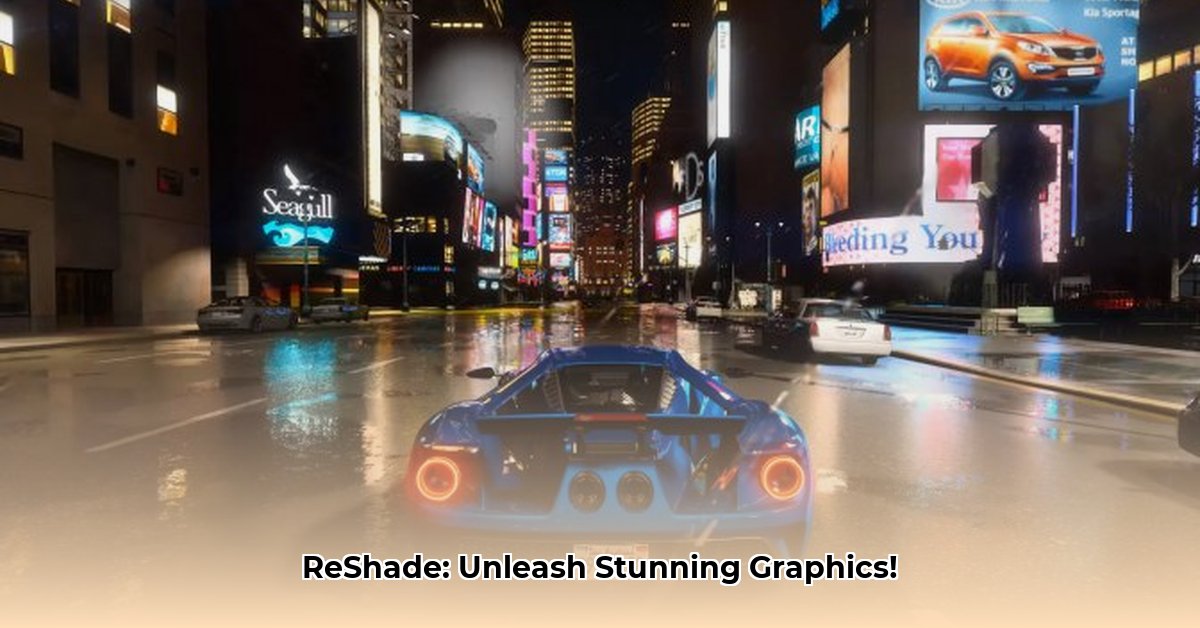
Looking to dramatically improve your game's visuals? ReShade is a powerful, free tool that adds post-processing effects, enhancing lighting, shadows, colors, and more. This guide will walk you through downloading the latest version (currently 6.4.1) and optimizing its performance.
Downloading and Installing ReShade
Downloading and installing ReShade is straightforward, but requires careful attention to detail. Here's a step-by-step guide:
Step 1: Download the Installer
Navigate to the official ReShade website (https://reshade.me/) and download the latest version (currently 6.4.1). The download will be an .exe file—the installer program.
Step 2: Locate Your Game's Executable
Find your game's executable file (usually a .exe). This varies depending on your game launcher:
- Steam: Right-click the game in your Steam library, go to "Properties," then "Local Files," and find the game's main folder. The executable is usually within.
- Epic Games Store: Similar to Steam, locate the game's installation directory through the Epic Games Launcher.
- Other Launchers (GOG Galaxy, etc.): Consult the launcher's help documentation or settings for the game's installation path.
Step 3: Run the ReShade Installer
Run the downloaded .exe and follow the on-screen instructions. The most critical step is selecting your game's executable file in the next step for ReShade to work correctly. This informs ReShade which game to enhance. A wrong location leads to incompatibility issues.
Step 4: Select APIs (Application Programming Interfaces)
ReShade supports DirectX 9, 10, 11, 12, OpenGL, and Vulkan. Your game uses one or more of these. The installer will usually detect this automatically but may require you to select if it fails. If unsure, choosing DirectX often works.
Step 5: Download Shaders
After installation, ReShade prompts you to download shaders. These are pre-made visual effects. Download a few to start; you can add more later.
Step 6: Launch Your Game and Enjoy!
Launch your game; you might see an immediate change, otherwise, you will need a little configuration.
Configuring ReShade: Fine-Tuning Your Visuals
ReShade offers extensive customization options. Here's how to manage:
Step 1: Access the ReShade Interface
Press your defined hotkey (usually Shift + F2) in-game to access ReShade's interface. You'll see your chosen shaders and their settings.
Step 2: Enable/Disable and Adjust Shaders
Toggle shaders on/off to control visual effects. Each shader has adjustable settings; experiment to find what you like.
Step 3: Utilize Presets
Many shaders have pre-configured presets offering quick visual changes. These are great starting points for experimentation.
Step 4: Understanding .ini Files (Advanced)
ReShade uses .ini files (configuration files) to save shader settings. These can be edited directly for precise control. However, the in-game interface is sufficient for most users.
Shader Selection: A Vast Community-Driven Library
ReShade's strength lies in its community. Hundreds of creators produce and share new shaders, offering a massive variety of styles. Explore the available options to find what you prefer.
Performance Considerations: Striking a Balance
ReShade can affect performance. Complex shaders at high resolutions reduce FPS. Find a balance between visual quality and performance. Experiment with different settings and consider lowering shader resolution or intensity.
Troubleshooting Common Issues
Here are solutions to common ReShade problems:
| Problem | Possible Solution(s) |
|---|---|
| Game Crashes | Verify API selection, try different shaders, reinstall ReShade |
| Visual Glitches | Update shaders, adjust settings, consult community forums |
| Game Incompatibility | Check community forums for compatibility solutions |
Advanced Techniques (Optional): Custom Shader Creation
For advanced users, ReShade offers an API for creating custom shaders. This requires programming knowledge. Community forums are the best resource for learning more about this advanced customization.
Remember, ReShade's effectiveness depends on your game and hardware. Experimentation and consultation with online communities are frequently necessary for optimal results. Start small, experiment, and enjoy enhancing your gameplay experience!
⭐⭐⭐⭐☆ (4.8)
Download via Link 1
Download via Link 2
Last updated: Tuesday, April 29, 2025